

PowerPoint-based production
Work with your existing teaching slides. DeckNari reads every slide and every object on it, so effects point at the right thing.
Needs Microsoft PowerPoint for Windows (desktop), not included.
Create engaging teaching videos from your slides, script and narration — with synchronised slide timing, subtitles and AI-assisted teaching effects, made on your Windows PC.
Ready to buy? Buy DeckNari — …
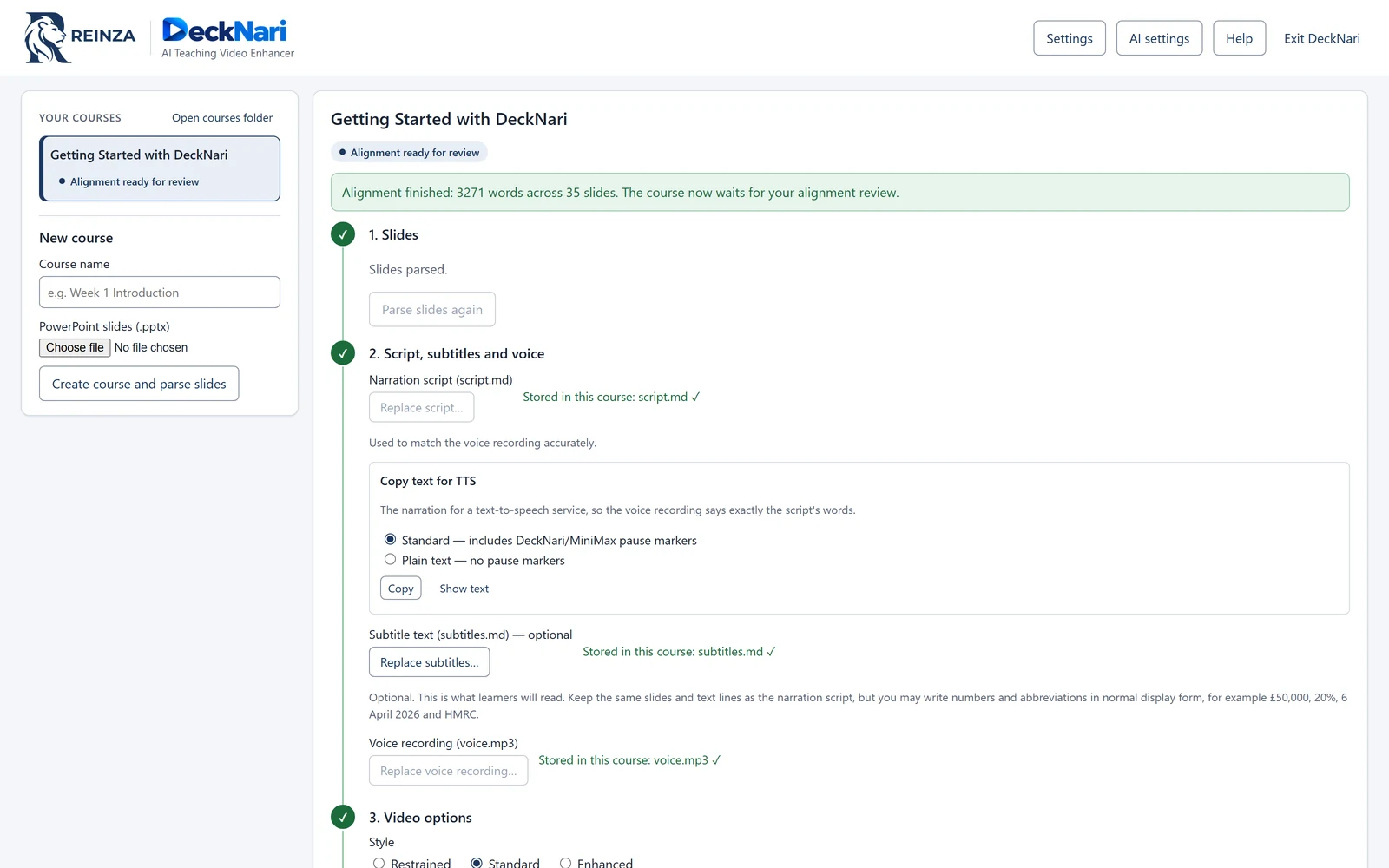
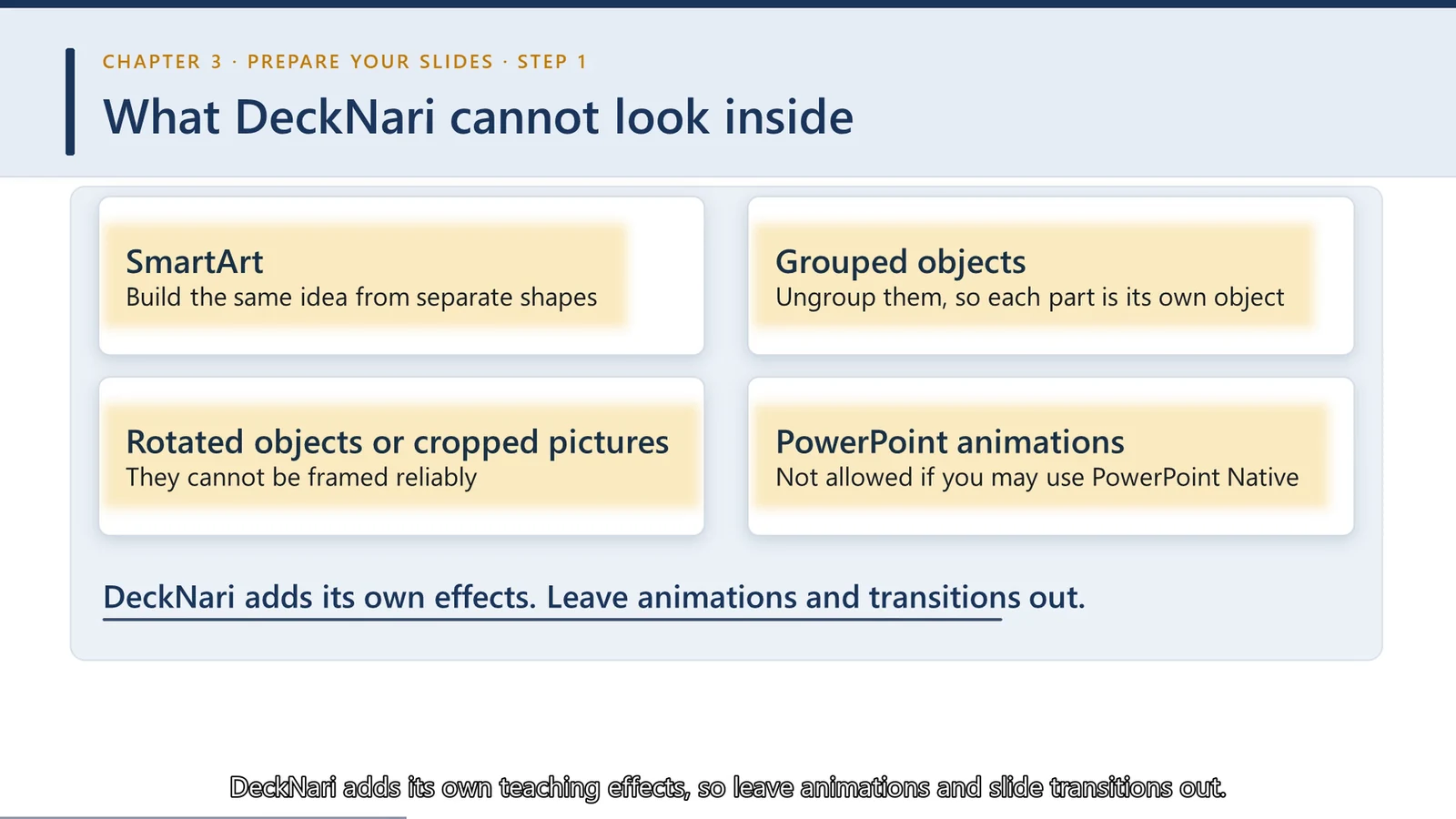
From a PowerPoint deck, a script and a voice recording to a finished teaching video.
 Official DeckNari Demo — Coming Soon
The walkthrough video will be shown here. Until then, see real screens from DeckNari.
DeckNari is a Windows desktop application for creating and enhancing English-language teaching videos. You bring the teaching; DeckNari takes care of the timing, the subtitles and the on-screen emphasis, and you stay in control of every decision.
Built for teaching, not flashy video effects: every effect points at the slide object you are talking about, at the moment you say it.
DeckNari does the careful, time-consuming work of synchronising slides, speech, subtitles and emphasis.
Work with your existing teaching slides. DeckNari reads every slide and every object on it, so effects point at the right thing.
Needs Microsoft PowerPoint for Windows (desktop), not included.
Your script is aligned to your voice recording word by word, so each slide appears exactly when you start talking about it.
Subtitles timed to your voice help viewers follow the lesson: burned into the picture, saved as an SRT file, or both.
Highlight, Spotlight, Zoom, Underline, Progressive Reveal and Subtle Pulse. The AI adds them automatically, on the object you are explaining, as you explain it.
Uses an AI you choose: a cloud AI with your own API key, or a local AI in Ollama or LM Studio.
DeckNari runs on your Windows PC and your courses are ordinary folders there. Nothing is uploaded to REINZA.
Check the alignment and every effect, then change, add or switch off anything. You approve before the final video is made.
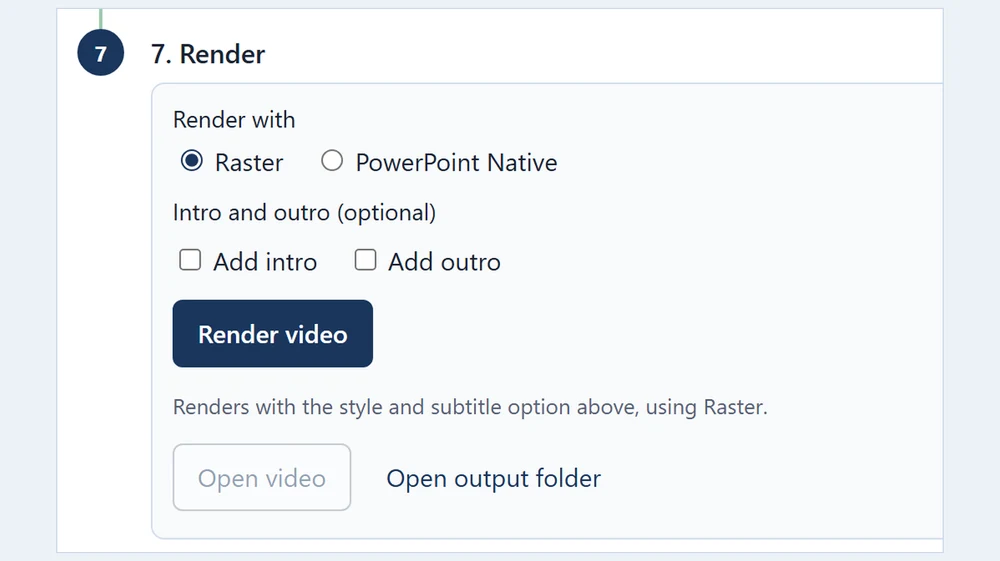
Raster, where DeckNari draws each slide itself, or PowerPoint Native, where PowerPoint renders your slides. Both give you an MP4 video.
Add a text or logo watermark, and join your own intro and outro clips to the course video.
Clear, guided pages: you always know what DeckNari has done and what it is waiting for.
Each course moves from your slides to a finished video through seven steps, and the course page shows where you are.
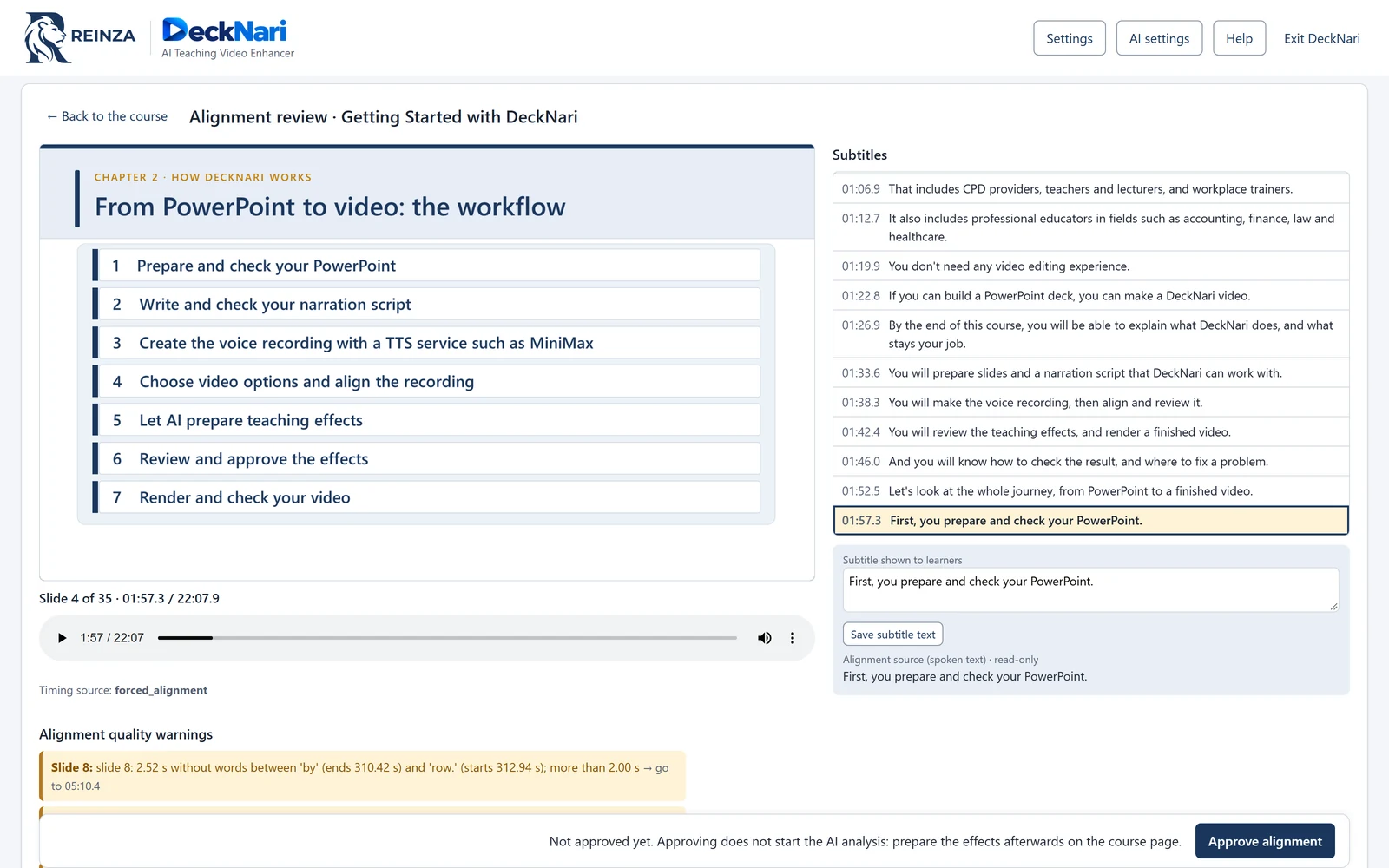
Play the recording and follow every subtitle with its time. Correct the subtitle text learners will read, and let the quality warnings show you where to look.
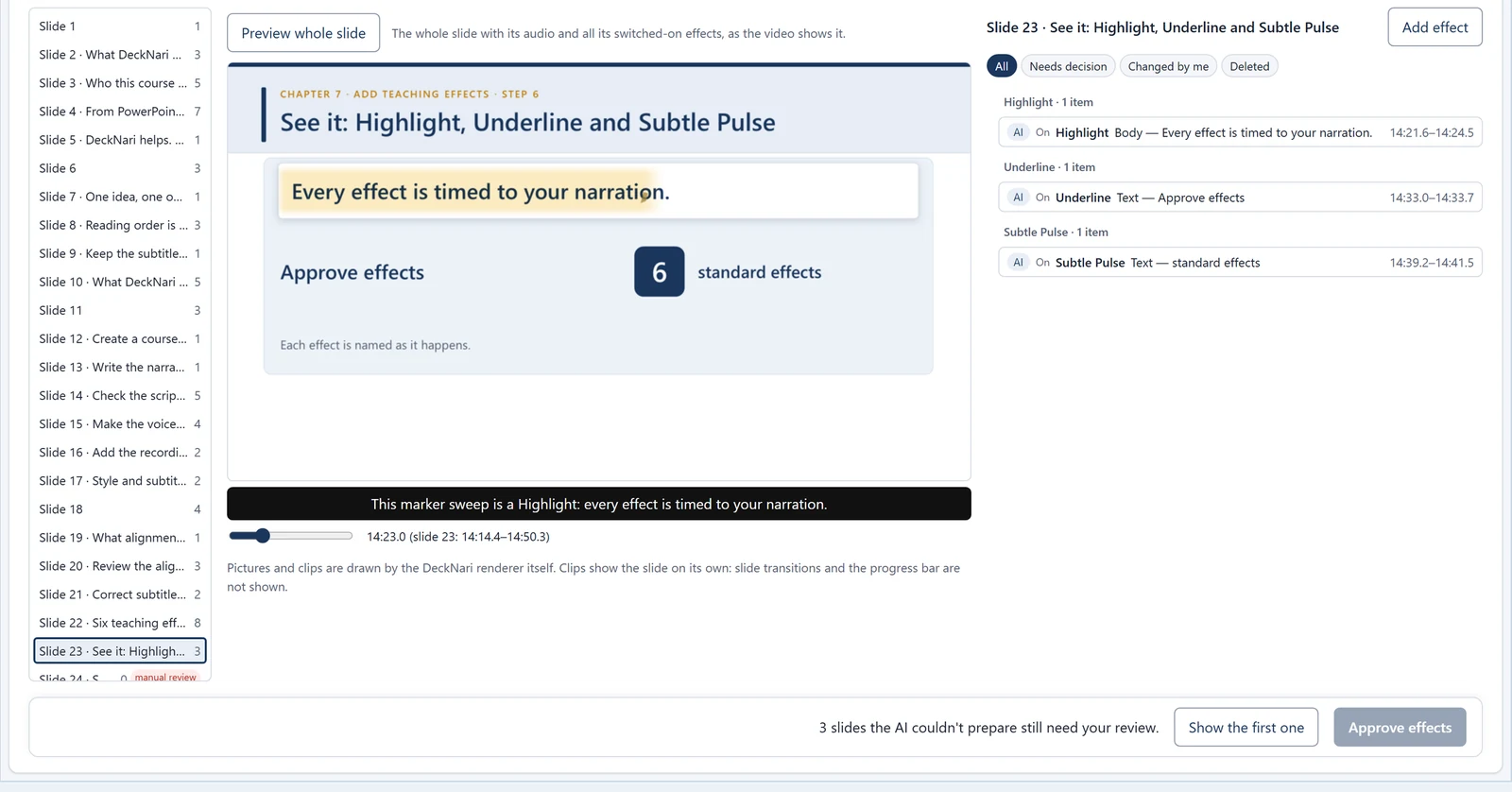
Choose from 6 built-in teaching effects: Highlight, Spotlight, Zoom, Underline, Progressive Reveal and Subtle Pulse. The AI adds them automatically; you review them, preview each slide and fine-tune them before rendering your video.
Choose Raster or PowerPoint Native, add an intro and outro if you like, and render. DeckNari saves an MP4 video and its subtitles file in your course folder.
No video editing experience needed. If you can build a PowerPoint deck, you can make a DeckNari video.
Create a course from your PowerPoint deck, and write the narration script for each slide. DeckNari's Help includes ready-made prompts if you want an AI chat to help you write.
Record your own voice, or make the recording with a text-to-speech service: DeckNari gives you the exact text to use. Add the script and the MP3 to the course.
DeckNari aligns the narration word by word, then the AI adds teaching effects automatically. You review, refine and decide: you approve the alignment and the effects.
Choose your style, subtitles and render type, and DeckNari makes the MP4 video with its subtitles file.
Turn the lessons you already teach from slides into videos students can watch again at their own pace.
Produce consistent, clearly narrated training videos without learning video editing software.
Build structured CPD modules with accurate subtitles and teaching emphasis that keeps learners on track.
Create course videos from your existing PowerPoint material, with your own watermark, intro and outro.
Try DeckNari free for 14 days, then buy once. No subscription.
REINZA Limited is not registered for VAT, so no VAT is added to the price. Secure payment by Stripe.
Every feature, on your own courses. The trial starts by itself the first time DeckNari opens: no account, no email and no card.
Microsoft PowerPoint and any AI service are not included. See the questions below.
No. You pay once (…) for a permanent licence for DeckNari 1.x. There is no subscription and no renewal fee.
Install DeckNari and open it while connected to the internet: the trial starts by itself and DeckNari shows how many days are left. You can use every feature on your own courses. There is one trial per computer. More about the trial.
No. The trial needs no account, no email and no card. When you buy, Stripe asks for your email address so we can send you your licence key.
Yes. DeckNari uses Microsoft PowerPoint for Windows (the desktop application, not PowerPoint on the web) to read your slides when you create a course, and to render if you choose PowerPoint Native. PowerPoint is not part of DeckNari and is not installed by it.
DeckNari needs an AI to prepare teaching effects, and no AI is included. You choose one:
Alignment, subtitles, review and rendering do not use AI. You can always add, change or remove effects yourself.
No. Your slides, scripts, recordings and videos stay on your computer and are never sent to REINZA. If you choose a cloud AI, the course content it needs for preparing effects is sent to that AI provider. The licence service receives only what it needs for the trial and your licence. Privacy.
DeckNari becomes read-only: you can still open your courses, watch your videos and open their folders. Nothing is deleted. Activate a licence and everything is available again.
Yes. A licence works on one Windows computer at a time, and you can move it to a different computer yourself twice in 12 months. Reinstalling on the same computer does not count as a move. How to move a licence.
Use Recover My License: enter the email address you used when you bought DeckNari, and we email the key to that address.
More answers in Help, or email support@reinza.com.
Start your free 14-day trial today. No account, no email, no card.